
AdminBolt includes a built-in WordPress Management interface that allows you to perform common WordPress administration tasks without logging directly into the WordPress dashboard.
Using the WordPress Management tools you can:
- View installed WordPress sites
- Access your website or WordPress Admin area
- Manage plugins
- Manage themes
- Create posts and pages
- View basic WordPress information
- Uninstall WordPress if required
Opening WordPress Management
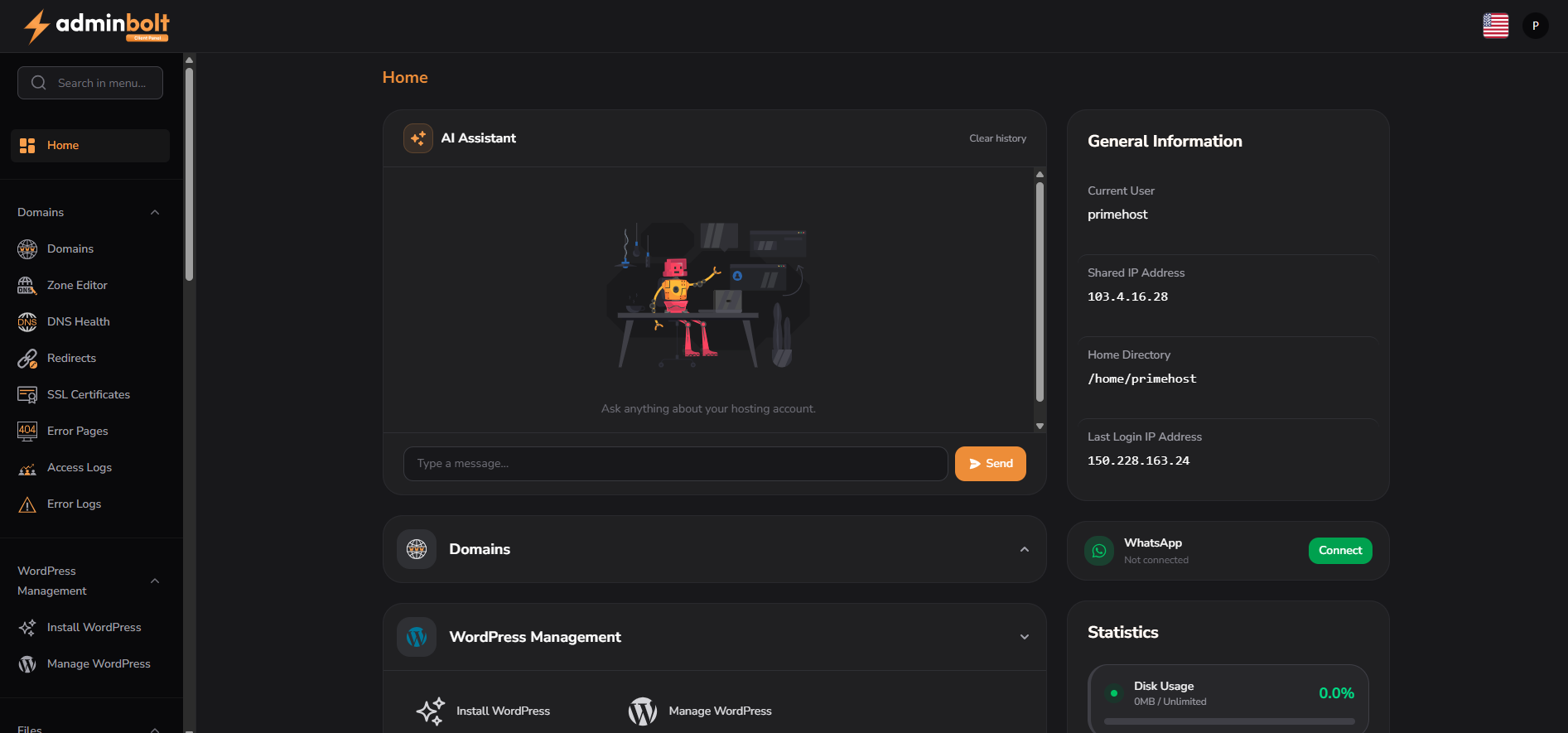
From the AdminBolt Home screen, locate the WordPress Management section and click Manage WordPress.
Viewing Installed WordPress Sites
The Manage WordPress page displays all WordPress installations detected under your hosting account.
For each installation you can:
- Visit - Open the website.
- Go to Admin - Open the WordPress dashboard.
- Manage - Open the WordPress Management interface.
- Uninstall - Remove the WordPress installation.
Warning: Uninstalling WordPress permanently removes the installation and should only be used when you are certain it is no longer required.
WordPress Overview
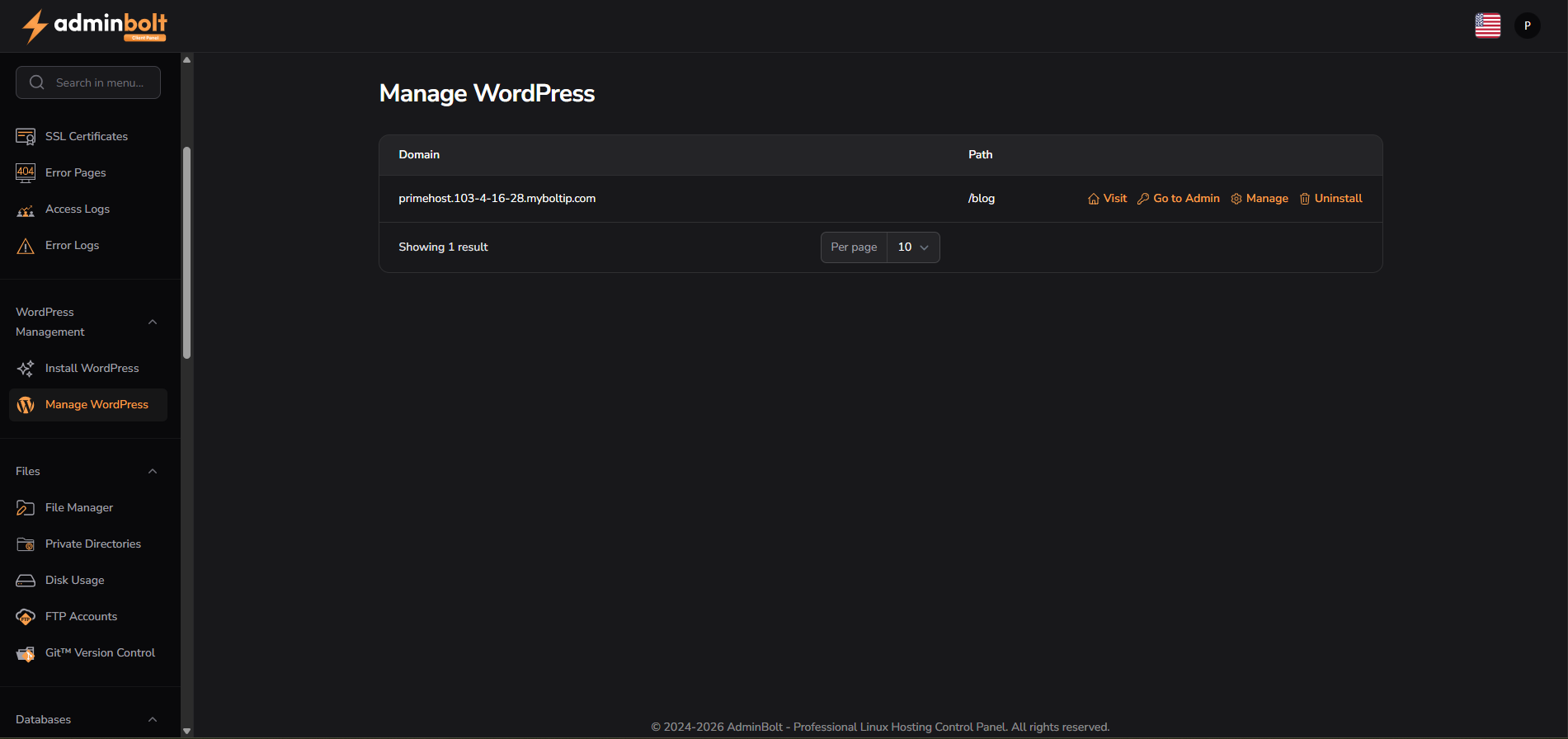
Click Manage next to a WordPress installation to open the management dashboard.
The Overview tab provides a summary of the website including:
- Website name
- Search engine visibility status
- WordPress version
- Update status
- Number of posts
- Number of pages
- Number of drafts
Quick access links are also available to open the website or WordPress Admin area.
Managing Plugins
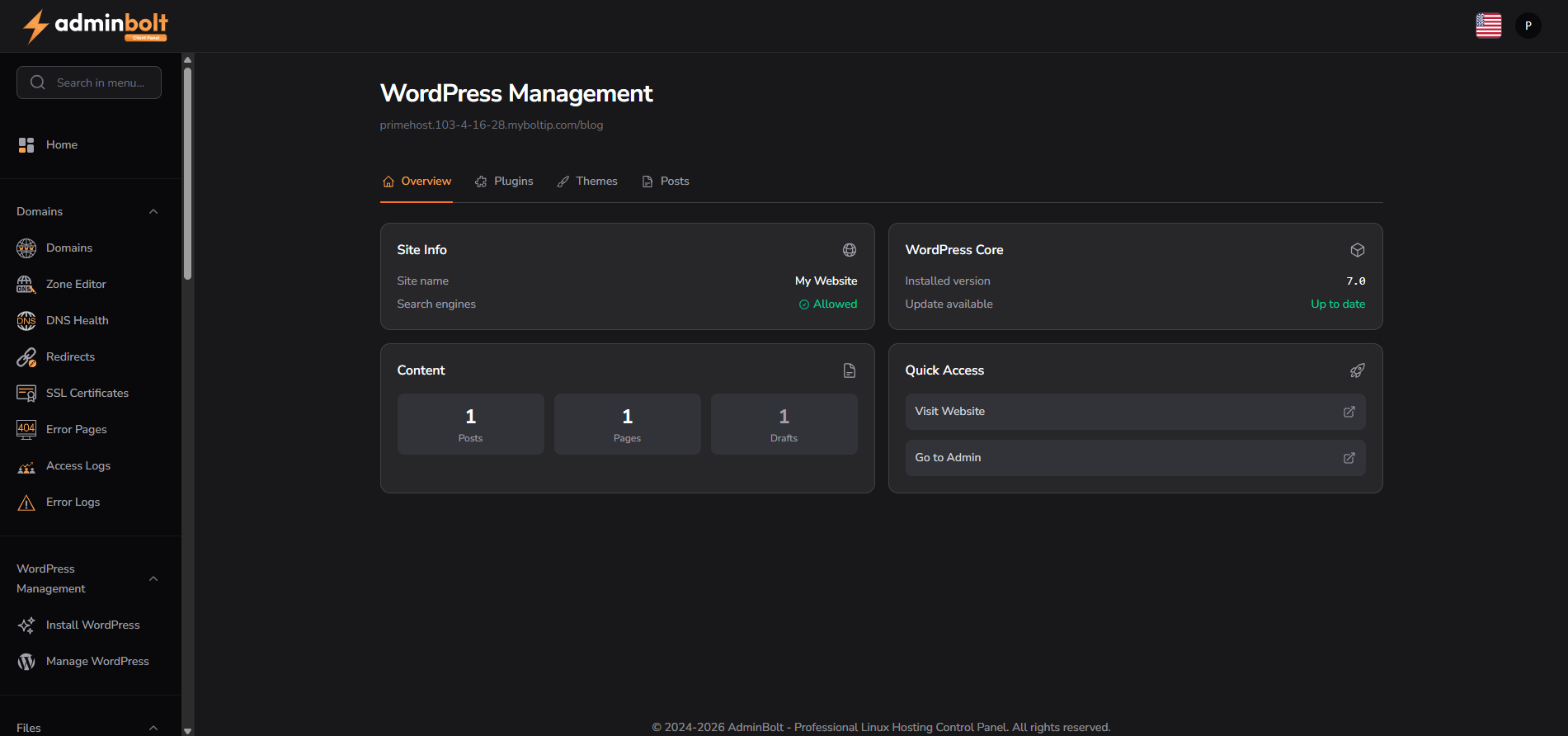
Select the Plugins tab to view and manage installed plugins.
From this screen you can:
- View installed plugins
- Check plugin versions
- Activate plugins
- Delete plugins
- Install new plugins using their WordPress.org slug
To install a plugin:
- Enter the plugin slug.
- Click Install.
- Activate the plugin if required.
Example plugin slugs:
- woocommerce
- wordfence
- updraftplus
- contact-form-7
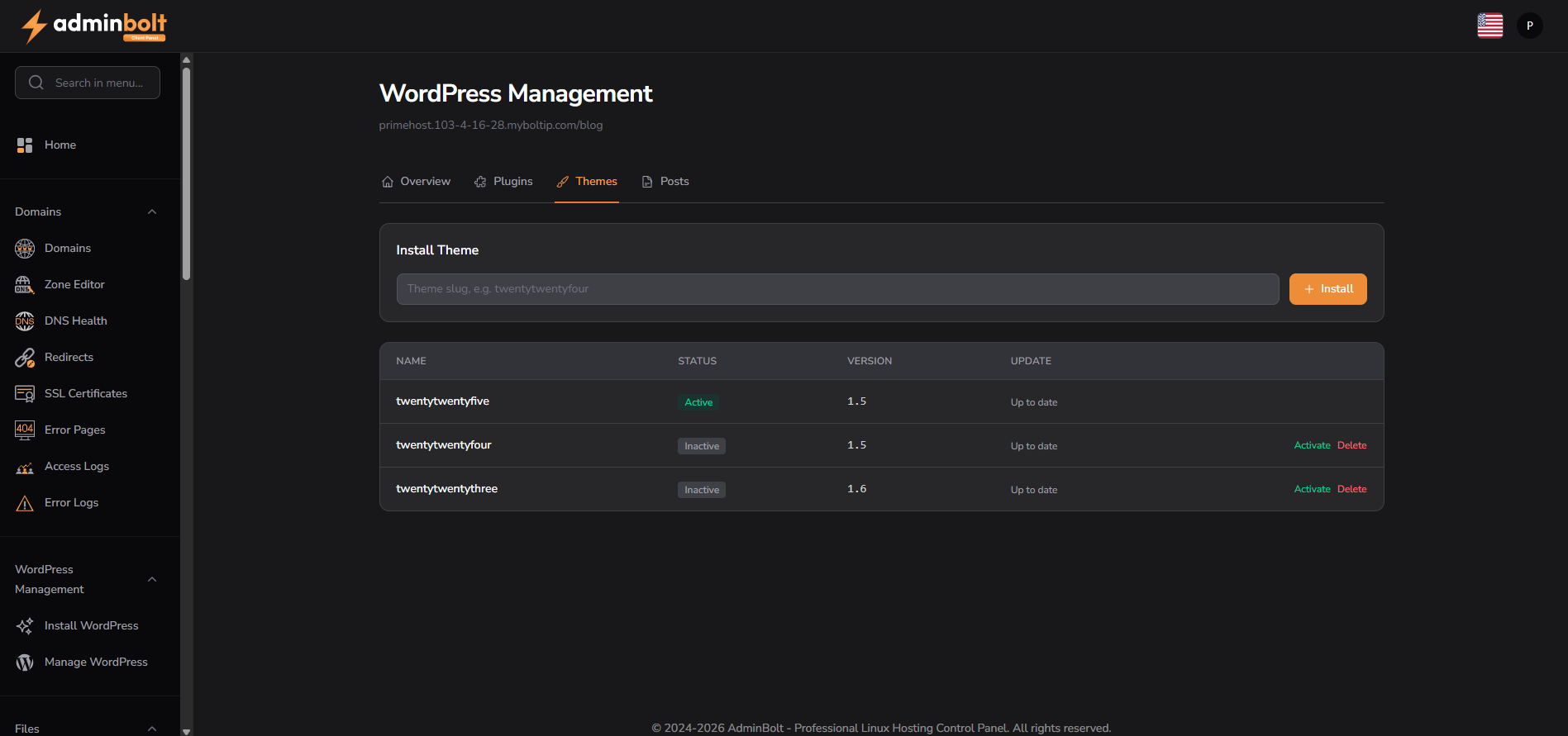
Managing Themes
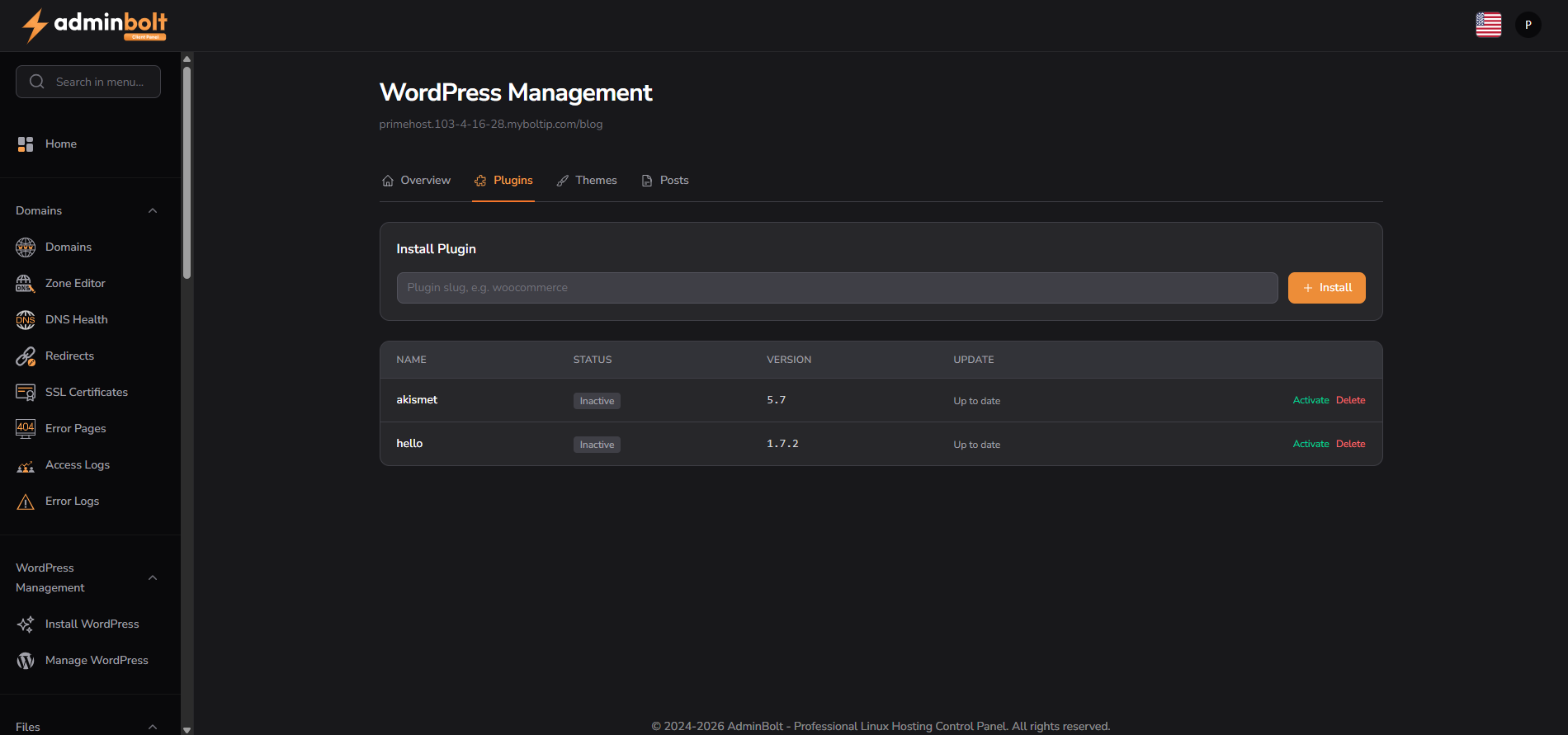
Select the Themes tab to manage WordPress themes.
You can:
- View installed themes
- See theme versions
- Activate a theme
- Delete unused themes
- Install new themes using their WordPress.org slug
To install a theme:
- Enter the theme slug.
- Click Install.
- Activate the theme when ready.
Examples:
- twentytwentyfive
- astra
- generatepress
- oceanwp
Managing Posts and Pages
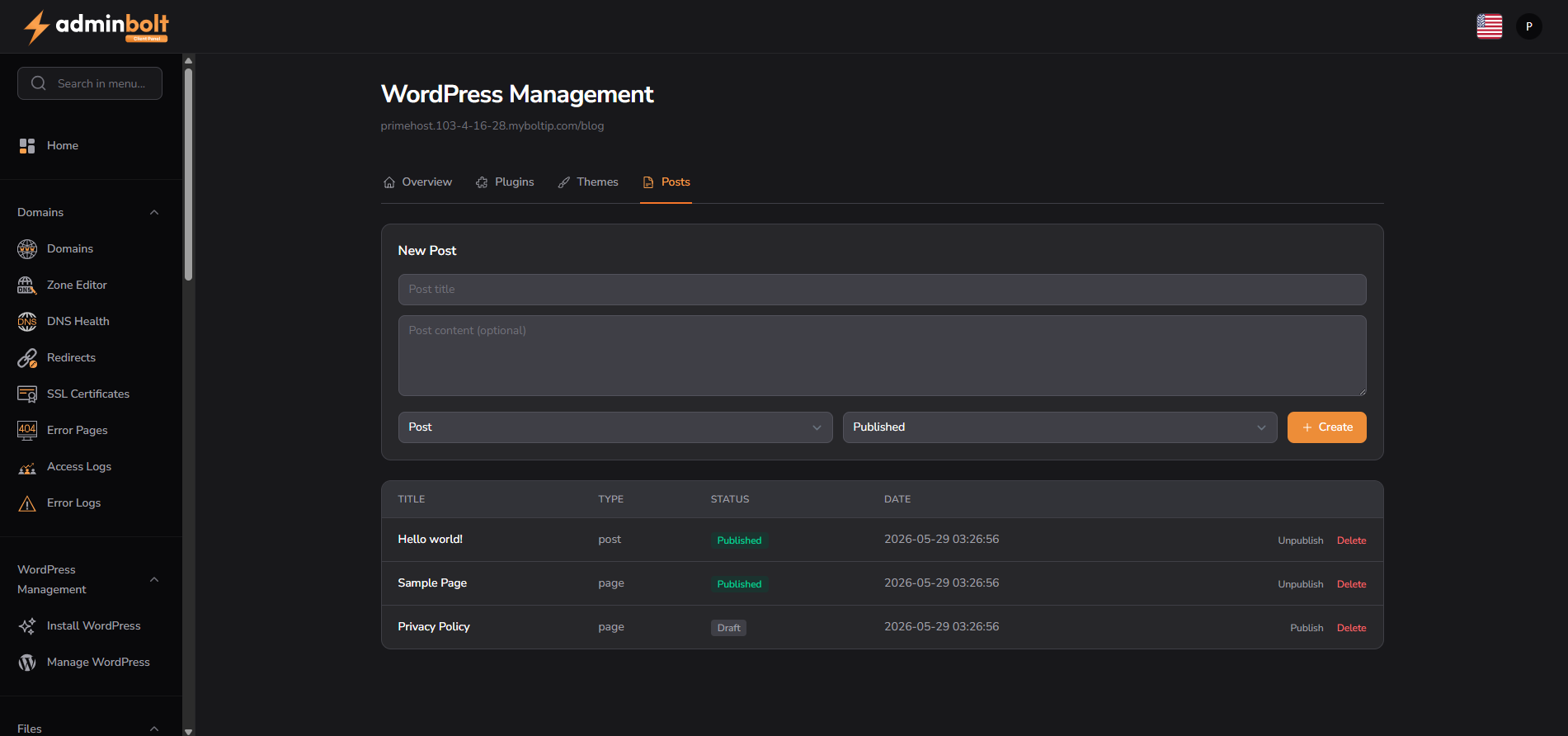
Select the Posts tab to create and manage content.
From this screen you can:
- Create new posts
- Create new pages
- Publish content immediately
- Save content as drafts
- Publish or unpublish existing content
- Delete content
To create content:
- Enter a title.
- Enter the content.
- Select whether the content is a Post or Page.
- Choose the publication status.
- Click Create.
Accessing WordPress Admin
While AdminBolt provides common WordPress management features, advanced website administration should still be performed within the WordPress dashboard.
You can access WordPress Admin at any time by:
- Clicking Go to Admin from the Manage WordPress page.
- Using the Quick Access panel in the Overview screen.
Best Practices
- Keep WordPress updated to the latest version.
- Remove unused plugins and themes.
- Only install plugins from trusted sources.
- Regularly back up your website.
- Use strong administrator passwords.
- Keep the number of installed plugins to a minimum where possible.
Need Assistance?
If you experience any issues managing your WordPress website through AdminBolt, please contact our support team for assistance.
