
This guide explains how to connect to your hosting account using FTP so you can upload, edit, and manage your website files.
What is FTP?
FTP (File Transfer Protocol) allows you to connect to your hosting account using software such as FileZilla to manage your files.
What You Need
- Your FTP username
- Your FTP password
- Your server hostname (usually your domain or server name)
Step 1: Find Your FTP Details
- Log into your AdminBolt Client Panel
- Navigate to your website or hosting account
- Locate the FTP Accounts or Access Details section
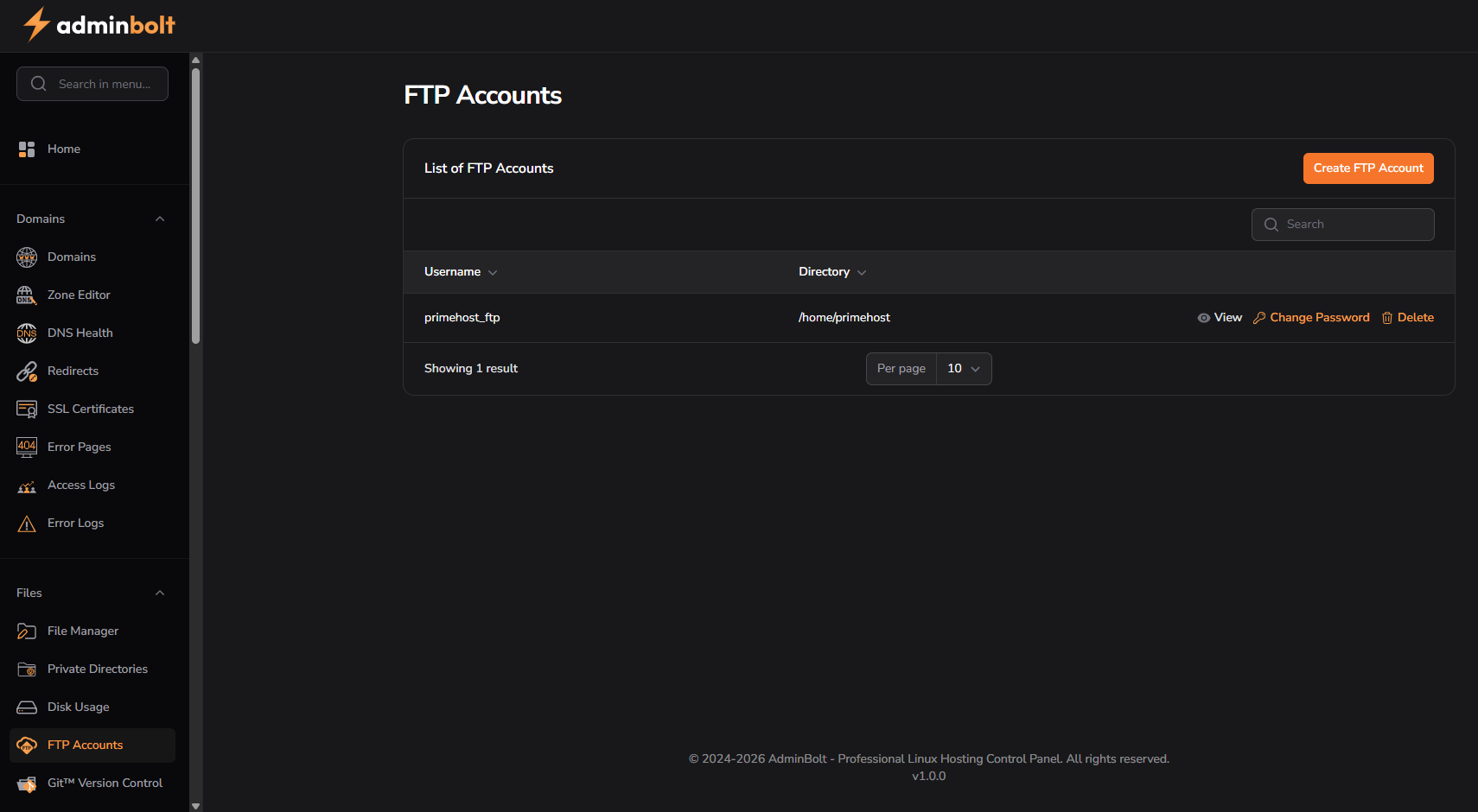
Step 2: Download an FTP Client
You will need an FTP program such as:
- FileZilla (recommended)
- WinSCP
- Cyberduck (Mac)
Step 3: Connect Using FTP
Open your FTP client and enter the following:
- Host: your domain or server hostname
- Username: your FTP username
- Password: your FTP password
- Port: 21 (or as provided)
Step 4: Access Your Files
Once connected:
- Your website files will appear on the server side
- Upload files by dragging them into the folder
- Edit or delete files as needed
Common Issues
Cannot Connect
- Check your username and password
- Try using your server hostname instead of domain
- Check your internet connection
Permission Denied
- Ensure you are accessing the correct folder
- Contact support if permissions need adjusting
Important Notes
- Be careful when deleting files – this can break your website
- Always keep a backup before making major changes
More information:
AdminBolt Client Panel Documentation
