
Using WP Toolkit in Plesk
WP Toolkit in Plesk makes it easier to manage WordPress websites from one central interface. You can use it to log in to WordPress, install new WordPress sites, manage plugins and themes, run security checks, and more.
This guide explains how to access and use the main WP Toolkit features in Plesk.
Quick Access to WP Toolkit Features
You can access common WP Toolkit actions directly from the Websites & Domains area in Plesk.
- Log in to your Plesk account.
- In the left-hand menu, click Websites & Domains.
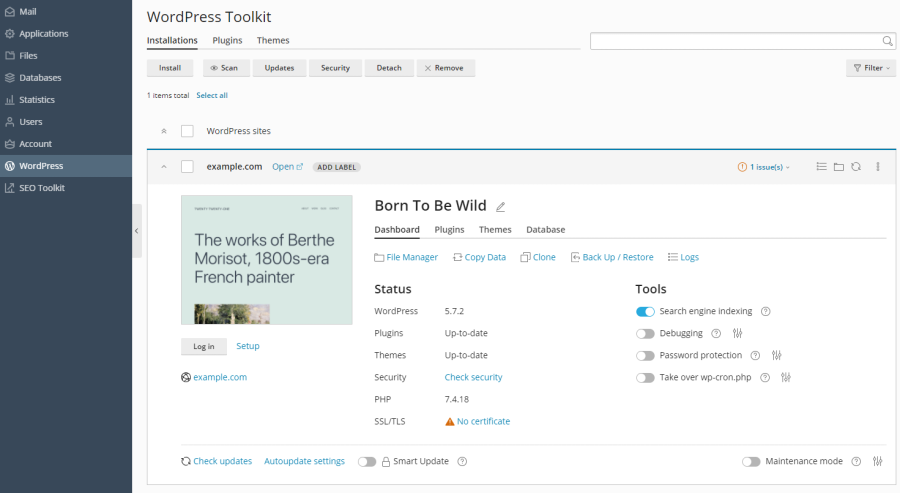
- Scroll to the domain where your WordPress website is installed.
- In the domain toolbar, you may see quick WP Toolkit options such as:
- Log In – signs you in to the WordPress admin area.
- Check Security – reviews WordPress security settings.
- Plugins – opens plugin management.
- Themes – opens theme management.
- Clone – creates a copy of the website.
- Sync – synchronises one WordPress instance with another.
Opening the Full WP Toolkit
To access the full WP Toolkit interface in Plesk:
- Log in to your Plesk account.
- In the left-hand menu, click WordPress.
- The WP Toolkit page will open.
Managing WordPress Installations
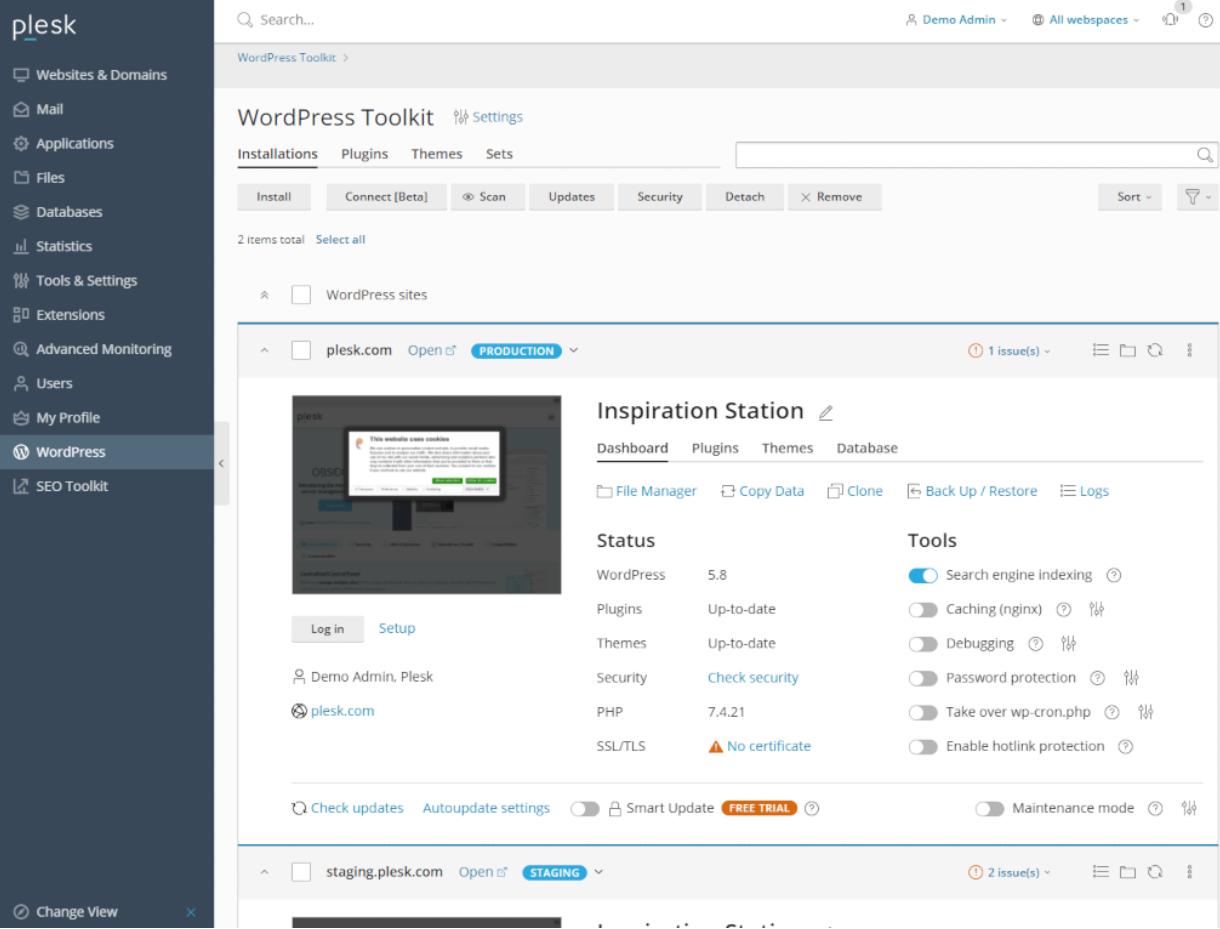
On the Instances tab, you can manage WordPress installations on your hosting account.
- Install – install a new WordPress website.
- Install (Quick) – create a standard WordPress installation using default settings.
- Install (Custom) – choose your own installation settings.
- Scan – search your account for existing WordPress installations.
- Updates – check for available WordPress updates.
- Security – review and apply security recommendations.
Each WordPress installation listed may also have extra options depending on your hosting setup and WP Toolkit version.
Managing Plugins
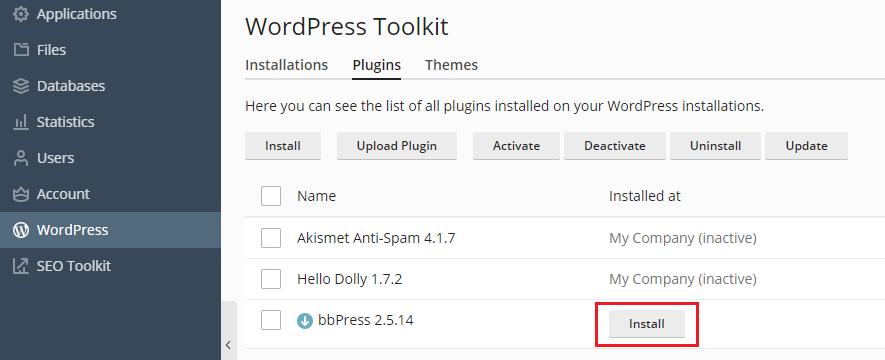
On the Plugins tab, you can manage plugins across your WordPress websites.
- Install – install a plugin from the available list.
- Upload Plugin – upload a plugin ZIP file manually.
- Activate – enable a plugin.
- Deactivate – disable a plugin.
- Uninstall – remove a plugin you no longer need.
- Update – install available plugin updates.
Managing Themes
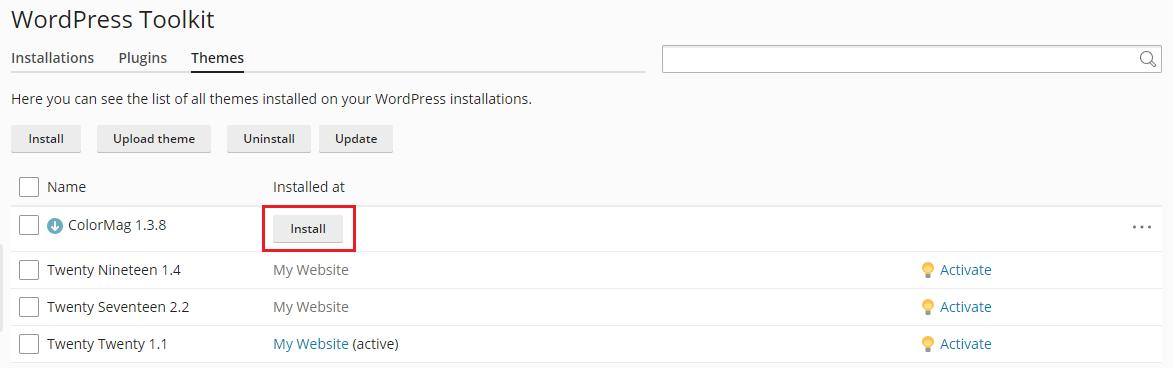
On the Themes tab, you can manage your WordPress themes.
- Install – install a new theme.
- Upload Theme – upload a theme ZIP file manually.
- Uninstall – remove an unused theme.
- Update – install available theme updates.
Helpful Tips
- Always make sure WordPress core, plugins, and themes are kept up to date.
- Review security recommendations regularly.
- Before making major changes, consider taking a backup or creating a clone of the site.
- If you manage multiple WordPress websites, WP Toolkit can save time by bringing the main management tools into one place.
Troubleshooting
If you do not see WP Toolkit in Plesk, it may not be enabled on your hosting service or server plan.
If a WordPress installation is missing from WP Toolkit, use the Scan option to detect existing sites.
If you cannot access certain features, your hosting provider may have restricted them depending on the account type or server configuration.
Need Help?
If you are unable to access WP Toolkit, manage your WordPress installation, or use one of its features, please contact support for assistance.
