
If your mailbox is getting close to its storage limit, or you are running out of space when sending or receiving emails, SmartMail includes tools that let you quickly see which folders and emails are using the most storage.
This guide explains how to:
- Check your total mailbox usage
- View folder sizes
- Find emails with large attachments
- Identify which folders or messages are using the most storage
- Clean up unnecessary emails to free space
Step 1 - Log in to Webmail
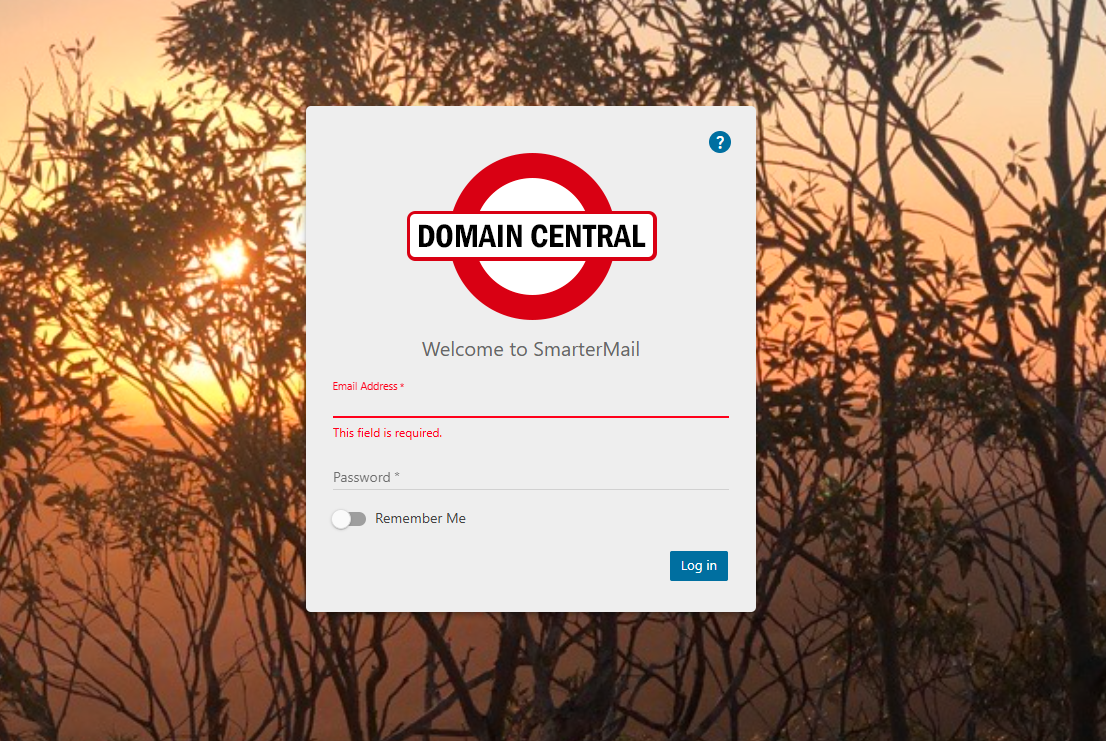
Open your webmail login page and sign in with your email address and password.
Example login screen:
Step 2 - Check Your Mailbox Storage Usage
After logging in, look toward the bottom left corner of the SmartMail interface. You will normally see a storage usage indicator showing how much space your mailbox is currently using.
This may appear as:
- A percentage bar
- Total MB or GB used
- Mailbox quota information
Example:

If the mailbox is close to full, you may experience:
- Emails bouncing back
- Unable to send or receive emails
- Slow mailbox performance
Step 3 - View Folder Sizes
Folders such as Inbox, Sent Items, Deleted Items, and Junk Mail are often the biggest storage users.
To check folder sizes:
- Right-click on a folder
- Select Properties, Folder Information, or View Size (depending on your version)
- The system will display the number of messages and folder size
Tip: The Sent Items folder is commonly the largest folder because it stores copies of everything you send.
Step 4 - Find Emails with Large Attachments
Large attachments are usually the biggest cause of mailbox storage usage.
To locate large emails:
- Use the search box in SmartMail
- Search for terms such as:
size:10MB
attachment:yes
larger:5MB
Depending on your SmartMail version, the exact search options may vary.
You can also:
- Sort emails by size
- Look for messages with paperclip icons
- Check Sent Items for large sent attachments
Step 5 - Empty Deleted Items and Junk Mail
Deleted emails still count toward your mailbox storage until they are permanently removed.
To free up space:
- Open the Deleted Items folder
- Select unwanted emails
- Delete them permanently
- Repeat the process for the Junk Mail folder
Important: Once permanently deleted, emails usually cannot be recovered.
Step 6 - Archive Older Emails
If you need to keep emails but want to reduce mailbox usage, consider:
- Downloading emails into Outlook or another mail program
- Creating local archives
- Saving attachments to your computer and deleting the original email
Common Storage Problem Areas
| Folder | Common Cause |
|---|---|
| Inbox | Large incoming attachments |
| Sent Items | Copies of sent attachments |
| Deleted Items | Trash not emptied |
| Junk Mail | Spam accumulation |
Tips to Keep Your Mailbox Clean
- Regularly empty Deleted Items
- Remove large attachments you no longer need
- Archive older emails locally
- Keep Sent Items under control
- Delete spam regularly
Need Help?
If you are unsure what is using your mailbox space, or you continue to receive quota warnings, please contact our support team and we can help investigate your mailbox usage further.
